
Withdrawal
The withdrawal module handles course drops and institutional withdrawals with configurable per-term rules.
Overview
Students can request withdrawal through the LMS portal. Rules governing deadlines, penalties, and refund eligibility are configured by academic users on the Desk view.
Key concepts
- Penalty-Free Window — a configurable period after term start where withdrawal carries no academic penalty
- Withdrawal Reason — a separate doctype allowing institutions to track and report on why students withdraw
- Refund/Scholarship Handling — financial implications configured alongside withdrawal rules
Withdrawal Request
Initiated by the student (if allowed in Seminary Settings) or by administrators/academic users
Student Request
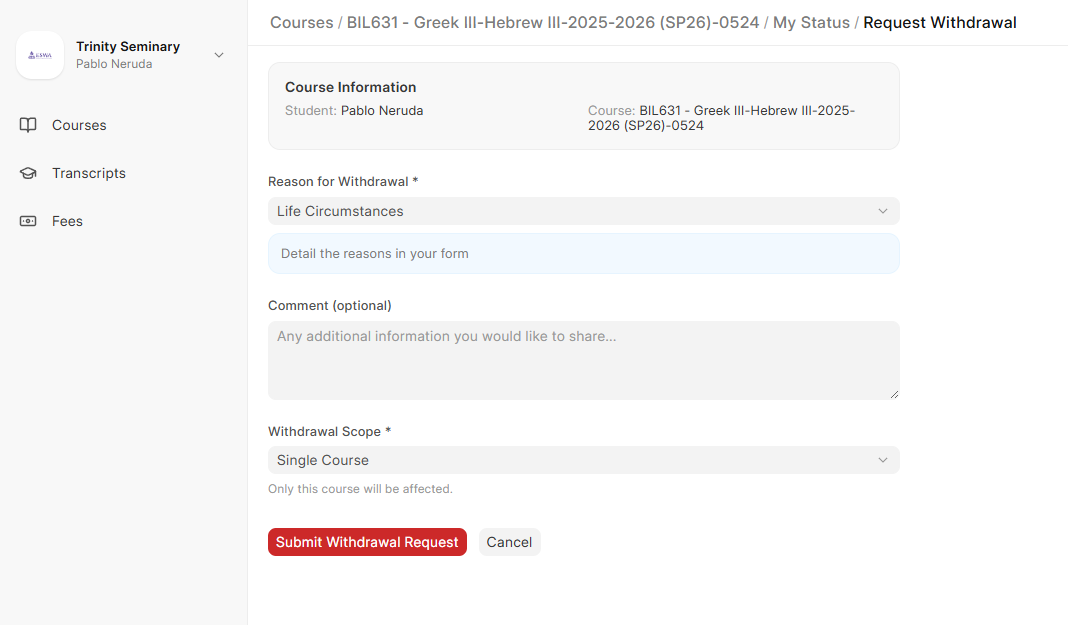
Students can request withdrawal from any course they are currently enrolled and have access on the Portal. Navigate to a Course --> My Status: At the bottom of the page, students can request widrawal from that course. The system will display on the top of this page the status of the course withdrawal request.
Students will need to provide a pre-configured reason and any support documentation required by that specific reason. The system will auto-populate required fields.
Students may also create withdrawal requests for other courses, alongside this one by selecting the appropriate choice in Withdrawal Scope. Each course will track its own Withdrawal Request, but seminary administrators will see the related requests.
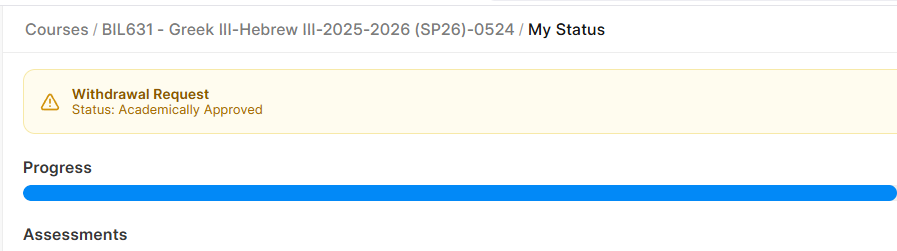
Once the student submitted the request, its status will be visible at the top of My Status page of that course. Status are dependent on the Workflow for this.
Registar Request
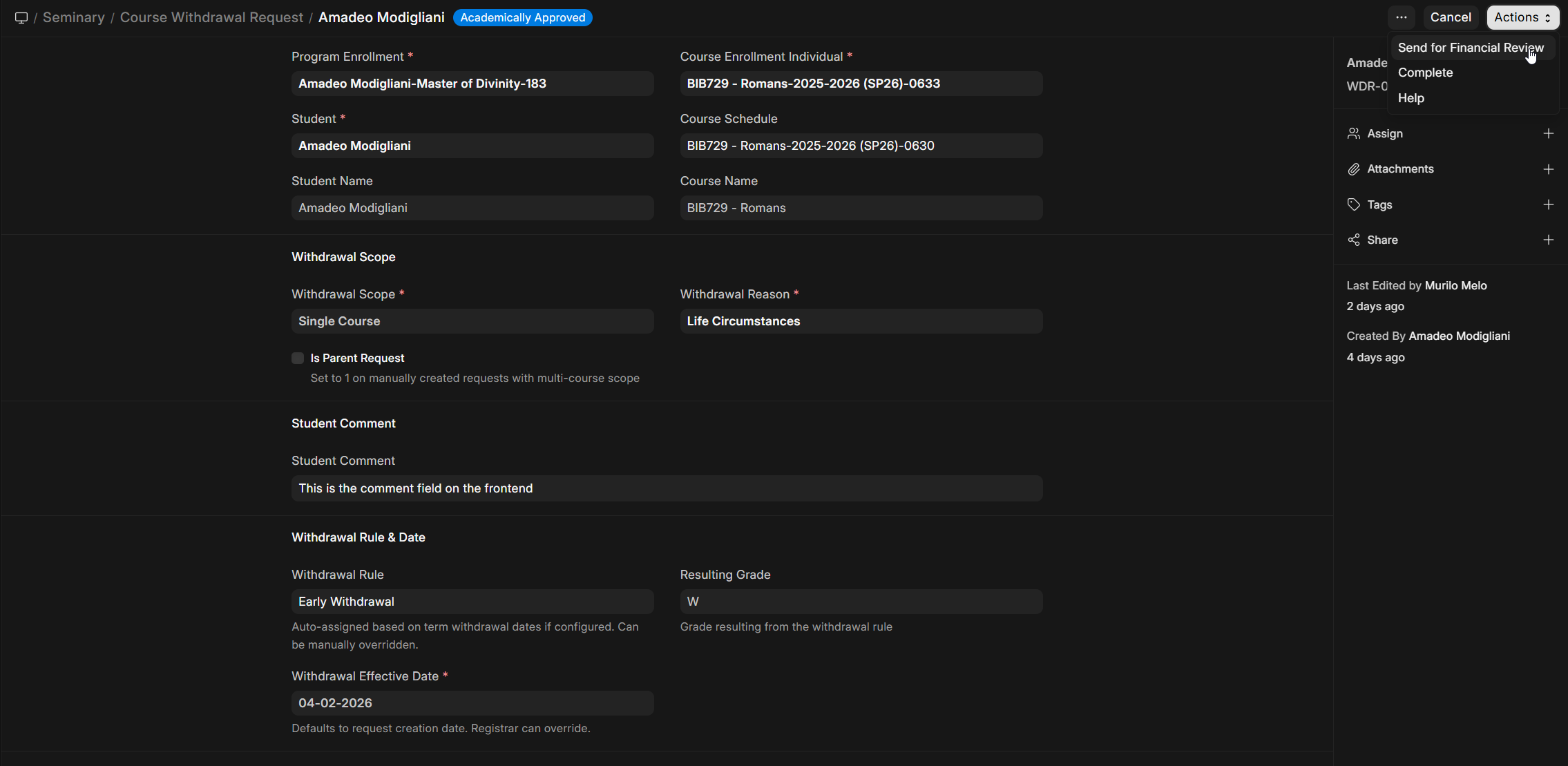
Registars or other assigned users can create and track progression of the Withdrawal Request within Desk, advancing it through the workflow with the Action menu (top right). Seminary ERP ships with a pre-defined Workflow, that can be customized by the Seminary administrator. This is particularly helpful to include email notifications, among other possibilities.
Withdrawal Reasons
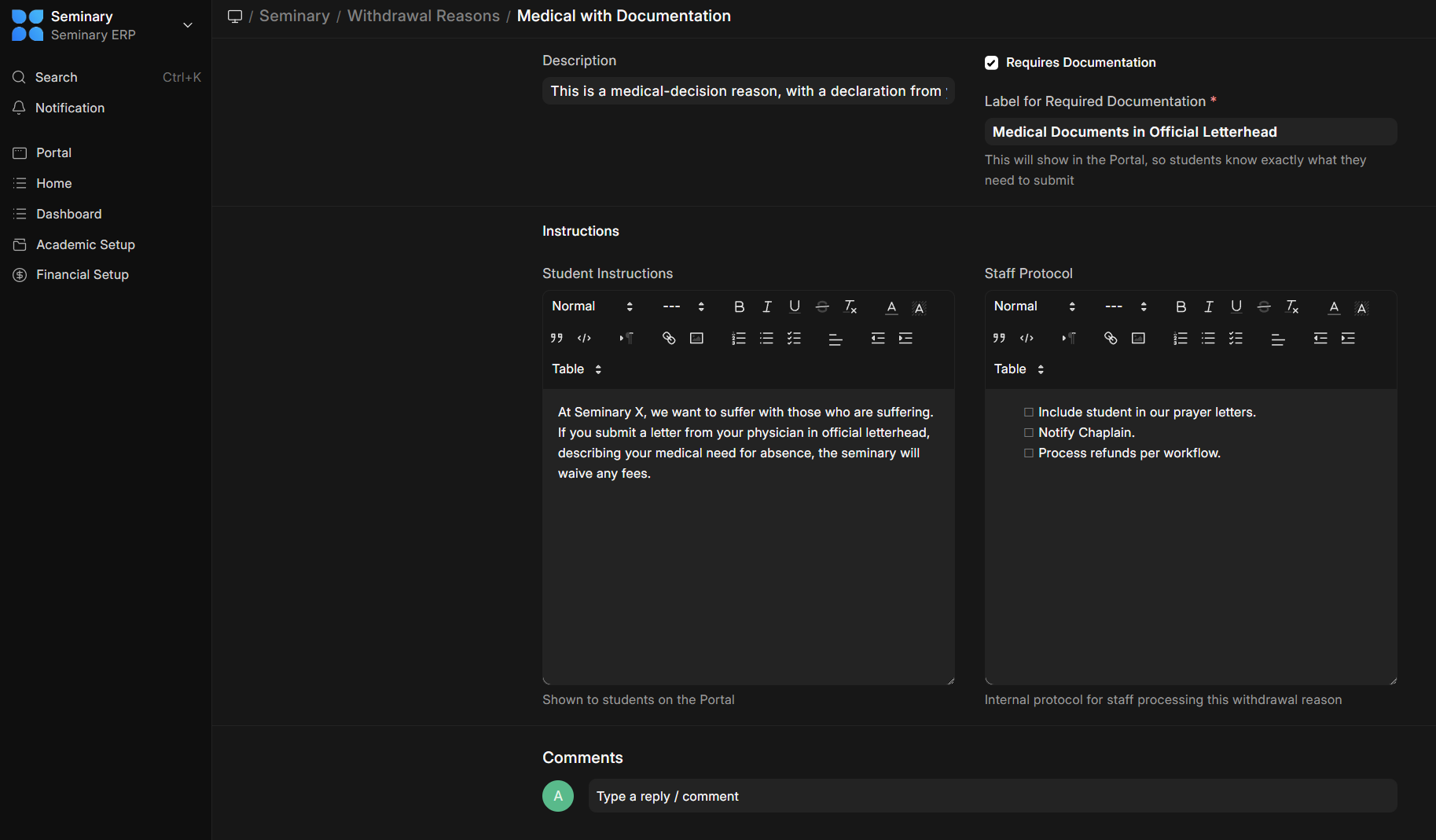
It is a good practice to standardize and evaluate periodically the reasons that compel students to drop from courses. Many accrediting agencies require that and SeminaryERP makes it easier to fulfill this requirement. When a withdrawal reason is created, administrators will give a name, a description, if it will be mandatory to attach support documentation (it is always available, just not mandatory) and if so, what label will be displayed to students. This is to make it easier to students to know exactly what is needed to submit. Two informational rich text editors provide initial documentation for students and staff.
Withdrawal Rules
- Give the rule with a clear name, easy to understand by itself.
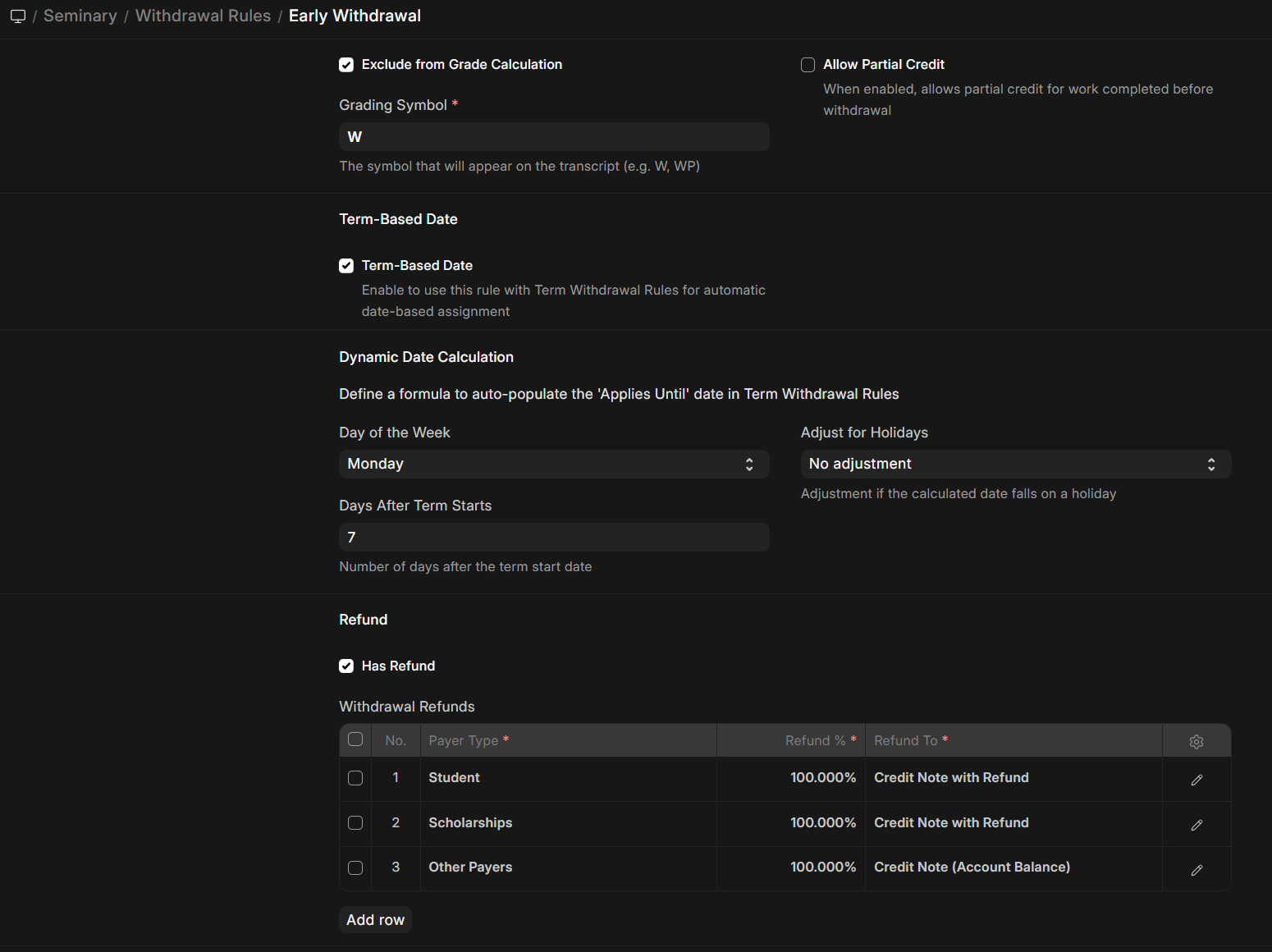
- The checbox "Exclude from Grade calculation" signals that this will not count towards the final GPA
- Grading Symbol: How do you want this to appear on the transcript (can be a word, not necessarily a symbol)
- Allow Partial Credit: The student submitted assessments may be used for partial credit (this feature is under development)
- If the main setting in "Seminary Settings" allows for it, a Term-Based Date may be calculated automatically for each term. When it is checked, additional fields will be available to calculate the "Applies until" date for each term. Note that since the rule is applied per term (even if it impacts course schedules), the date thresholds are always relative to the term.
- Refund: If the checkbox is marked, a child table becomes available. This will define how much will be refunded and to whom, if the rule applies. That is, the system will automatically identify the Sales Invoice for that course and create a Credit Note against it, following the same tax procedure as the Sales Invoice. Three types of Payers are contemplated by the rules: Student (i.e., the ERPNext Customer associated with the Student), Scholarships (the ERPNext Customer associated with Scholarships in Seminary Settings), and Other Payers (as SeminaryERP also gives the option for churches, denominations to pay for part of tuition).
Term Widrawal Rules
If there is a need for manual adjustment of the dates a rule apply, this can be done on Desk, Term Withdrawal Rules.

Withdrawal Request Workflow
Most seminaries will not need to edit the pre-configured workflow. However, it is possible to do so and larger institutions may particularly benefit from customizations. Since this is a ERPNext feature, their documentation may prove useful.
The workflow has five states: Draft → Academic Review → Financial Review → Completed, plus Rejected. Academic Review is the registrar's queue; Financial Review belongs to the Accounts User. The action you take carries the meaning — approving academically routes the request onward, and the side effects (withdrawing the course enrollment, issuing refunds, finalizing a program separation) are applied as those actions are taken.
The Academic Review step adapts to whether money is involved. When a refund could be due (a withdrawal rule with refunds applies and the program is not free), the registrar's approval is Approve Academically, which sends the request to Financial Review. When no refund is due, that same step becomes Approve Academically & Conclude, which settles the request in one click without a Financial Review stop.
Fast-paths for Ongoing and Free programs
Two flags on the underlying Program change the buttons shown on a withdrawal request, so users do not have to click through review states that have nothing to evaluate:
- Is Ongoing — a property of the Program Level, mirrored onto every Program at that level. Ongoing programs have no graduation, GPA, or transcript concept, so there is nothing to academically review on a withdrawal.
- Free Program — a per-Program checkbox. When set, enrollment generates no Sales Invoices, so there is nothing to financially review on a withdrawal.
The buttons available on a Draft Withdrawal Request adapt automatically:
| Program flags | Button shown on Draft | Lands at |
|---|---|---|
| Neither flag | Submit | Academic Review (standard Academic → Financial → Completed chain) |
| Free only | Submit | Academic Review; with no refund due, the registrar's approval appears as Approve Academically & Conclude and settles it in one step (no Financial Review) |
| Ongoing only, refund due | Submit & Approve Academically (Registrar) | Financial Review (academic auto-approved; paid courses still settle) |
| Ongoing only, no refund | Submit & Conclude (Registrar) | Completed |
| Ongoing and Free | Submit & Conclude (Student or Registrar) | Completed (no review at all) |
On the ongoing-program fast-paths no grade treatment is applied — the system simply marks the underlying Course Enrollment as withdrawn.
If a student initiates a withdrawal for an ongoing-but-paid program, they still see the standard Submit button; the registrar later walks the request through Academic Review, where the academic processing for ongoing programs is a no-op by design.